Install Flow Production Tracking fields from a spreadsheet
Upload a CSV or Excel column list and Studio Setup creates those fields on your Flow Production Tracking site, and shows you a plan before it touches anything.
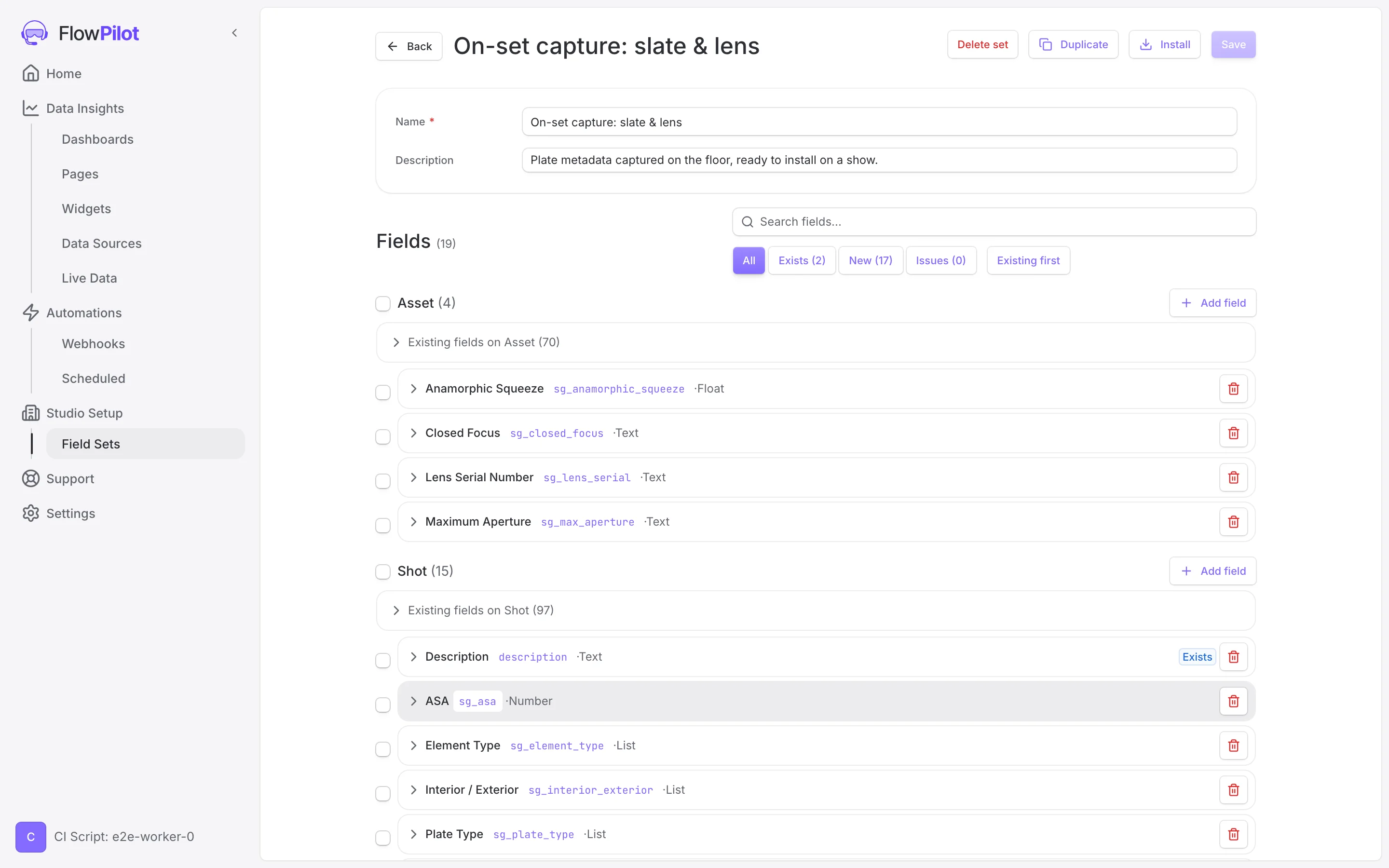
There are plenty of reasons you end up needing new custom fields on a Flow Production Tracking site. The one running through this post is getting on-set data into Flow PT: a show captures a pile of on-set metadata (slate, lens, camera, shoot day) and it has to land somewhere, which means custom fields on the site to hold it. Today that means opening Flow PT Admin and creating those fields one form at a time, matching a list by eye. For thirty or forty fields that is an afternoon, and it is easy to fat-finger a code or pick the wrong type and not catch it until you are already shooting.
Studio Setup does that part for you. You hand it the spreadsheet you already have, it reads the columns, checks them against your site, and creates whatever is missing.
Field sets
A field set is a saved list of field definitions. Each entry is an entity, a display name, a field code, a data type, and whatever else that type needs: list values, a uniqueness flag, valid link targets. You build the set once and install it onto a project when you want it, so you reuse the same on-set fields across every show.
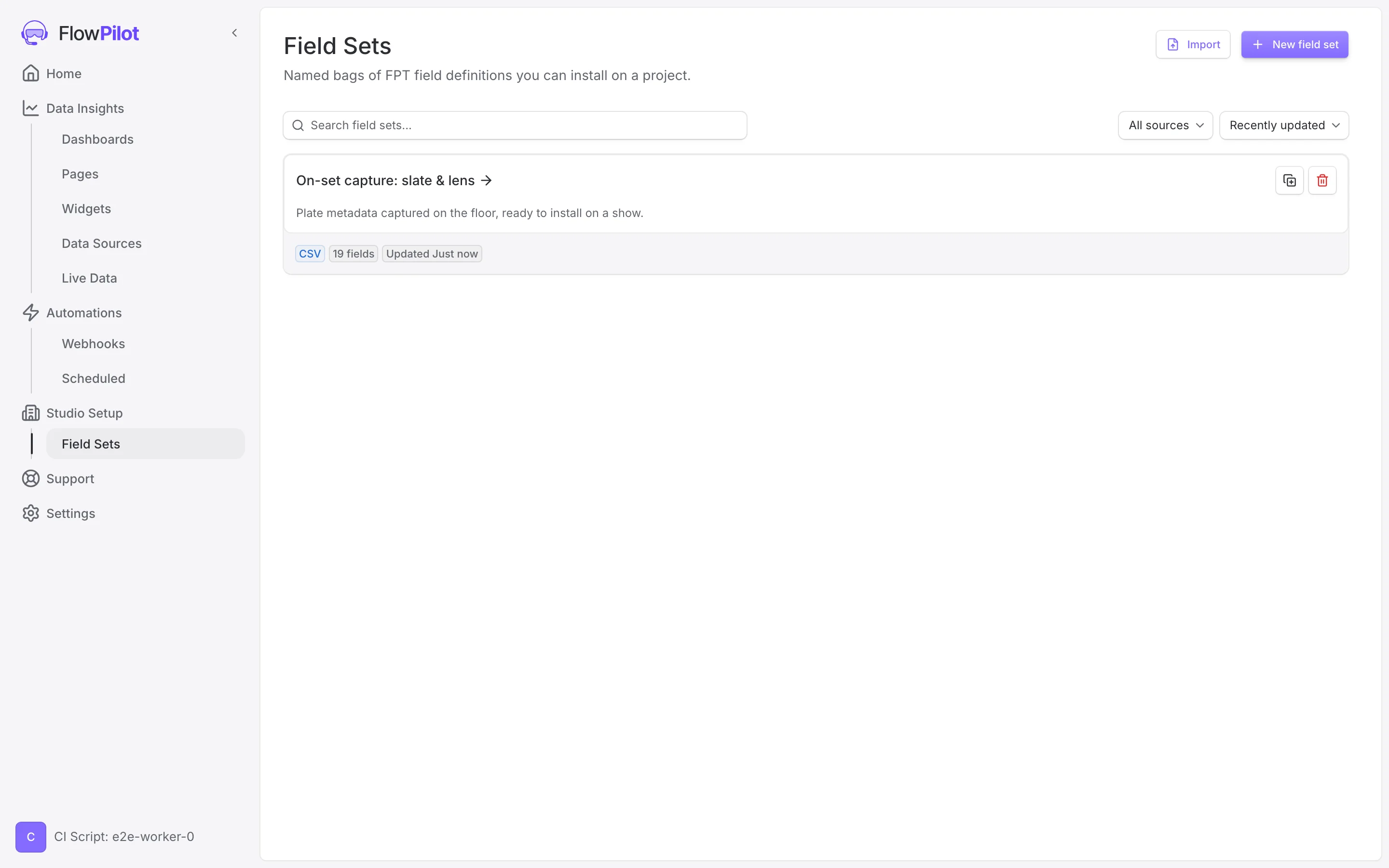
Studio Setup is admin-only, and free while we are still working out what it should do.
Where the spreadsheet comes from
On a shoot, a data wrangler captures the on-set metadata: slate and take details, lens and camera, filters, HDRIs, witness cams, set reference. At the end of the day, or the end of the job, they hand it to the VFX coordinator or production manager as an export from whatever database they run on set. Plenty of wranglers work from a FileMaker database, often a version of the VES camera report template tuned for speed on a busy set.
The handover is flexible by nature. On a longer job the wrangler asks which fields you actually want in Flow PT and exports just those; on a quick turnaround you get everything and sort it out later. Either way the column list is theirs, shaped by that shoot, and getting it into Flow PT so the data has somewhere to live falls to the coordinator. That is the step Studio Setup takes over: whatever spreadsheet lands in your inbox, point it at Flow PT and it builds the fields to match.
Your spreadsheet
On-set field lists are rarely tidy, and that is fine. Bring yours as it is. The file
below is one of those exports, from a FileMaker database a team runs on set today:
seventy-two columns, one sheet, FileMaker's Table::Field header style.
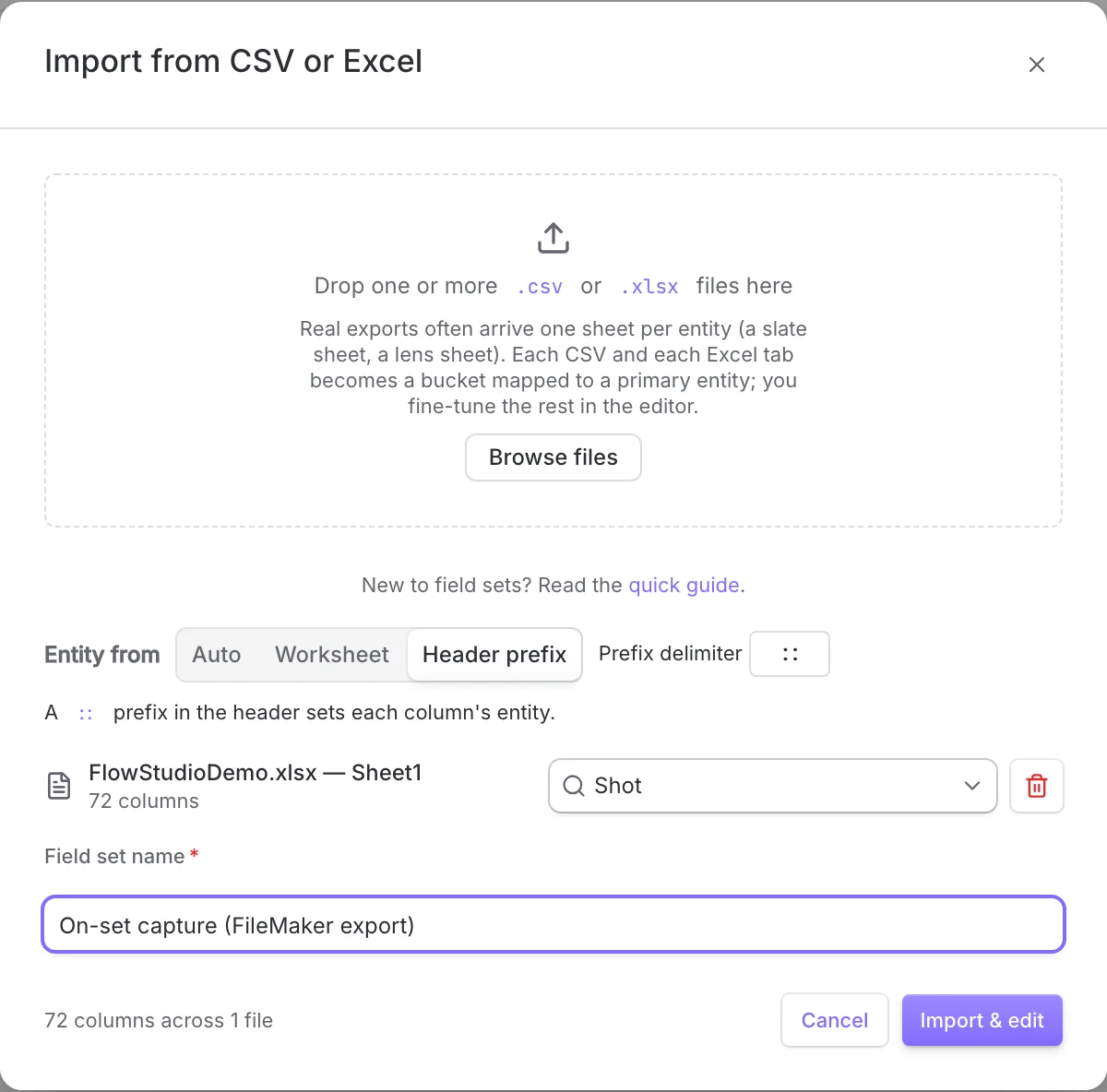
.csv or .xlsx files. A workbook with several
tabs becomes one bucket per tab.It reads the header row as your field names and samples a few data rows to guess
each column's type. FileMaker headers like Slates::Shoot Day get split:
Shoot Day is the field, and Slates tells it which entity the column belongs to.
The .xlsx parsing runs in your browser with a small OOXML reader, so the
file stays on your machine. Only the columns you import get sent on.
Which entity each column belongs to
You tell it which entity each column belongs to, with the Entity from control. Three modes:
Use a header prefix when there is one, otherwise the worksheet name, otherwise a guess. Fine for mixed files.
Each Excel tab name is the entity. Use this when your workbook really does have a Slate tab and a Lens tab.
A prefix on each column header sets the entity, split on a delimiter you
pick. The FileMaker file above uses ::.
Name the set, click Import & edit, and you land in the editor with every column already sorted into an entity.
Review
The editor groups fields by entity. By the time you open a set it has already loaded
your site's schema, so each field shows whether it exists already, whether the type
matches, and whether anything needs fixing. Matching normalises each header and
compares it against your site's fields by display name first, then by field code, so Shoot Day and sg_shoot_day both resolve to the same field.
A Flow PT export uses the display names as headers, so it lands cleanly. When a field
already exists, it adopts the site's real code and type, and install leaves it alone.
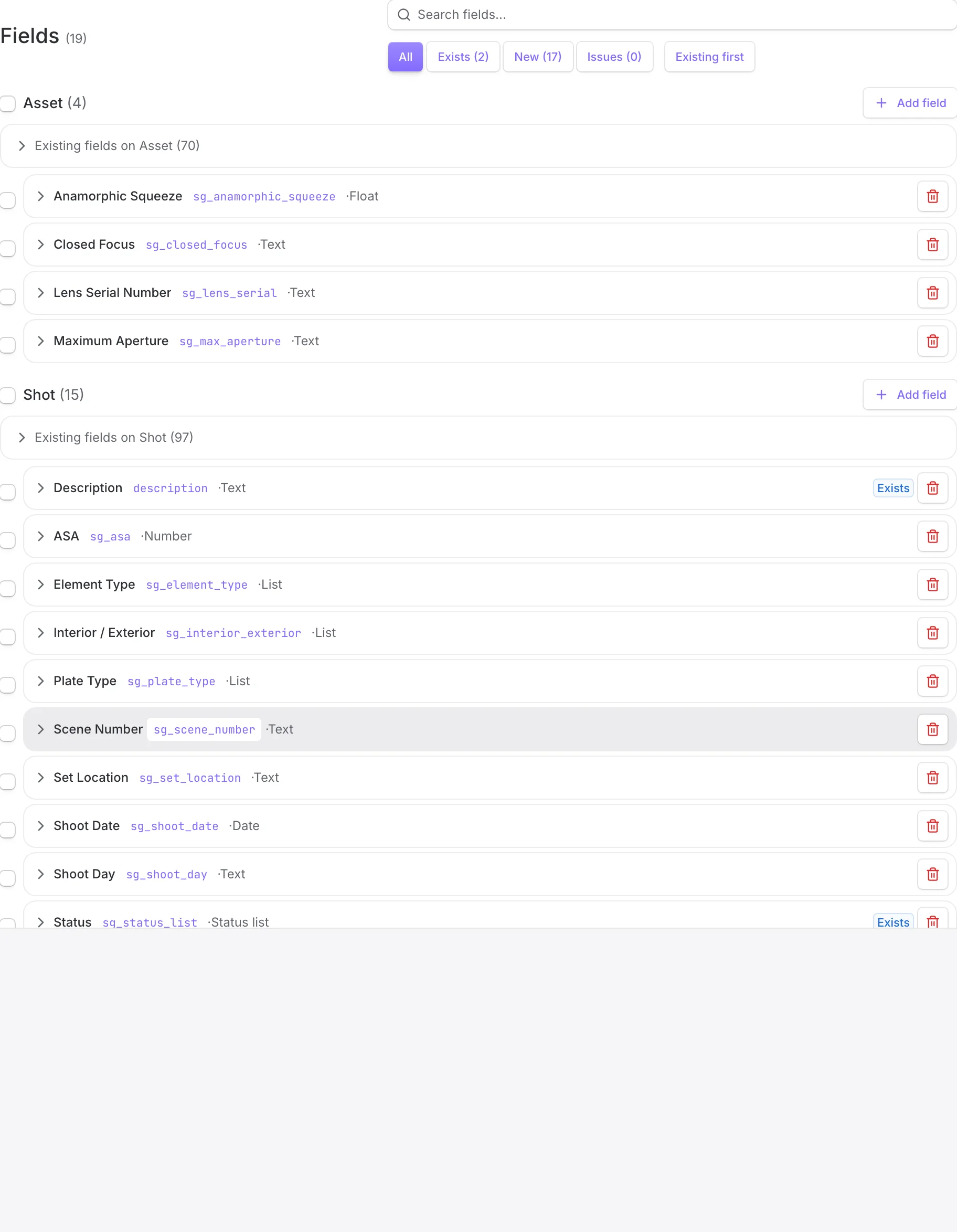
The editor gives you the Flow PT Admin edits in one place. Correct a type guess. Select a run of rows and reassign their entity, change their type, or pull a field's current definition back from the site. Filter to the new fields when a set gets long.
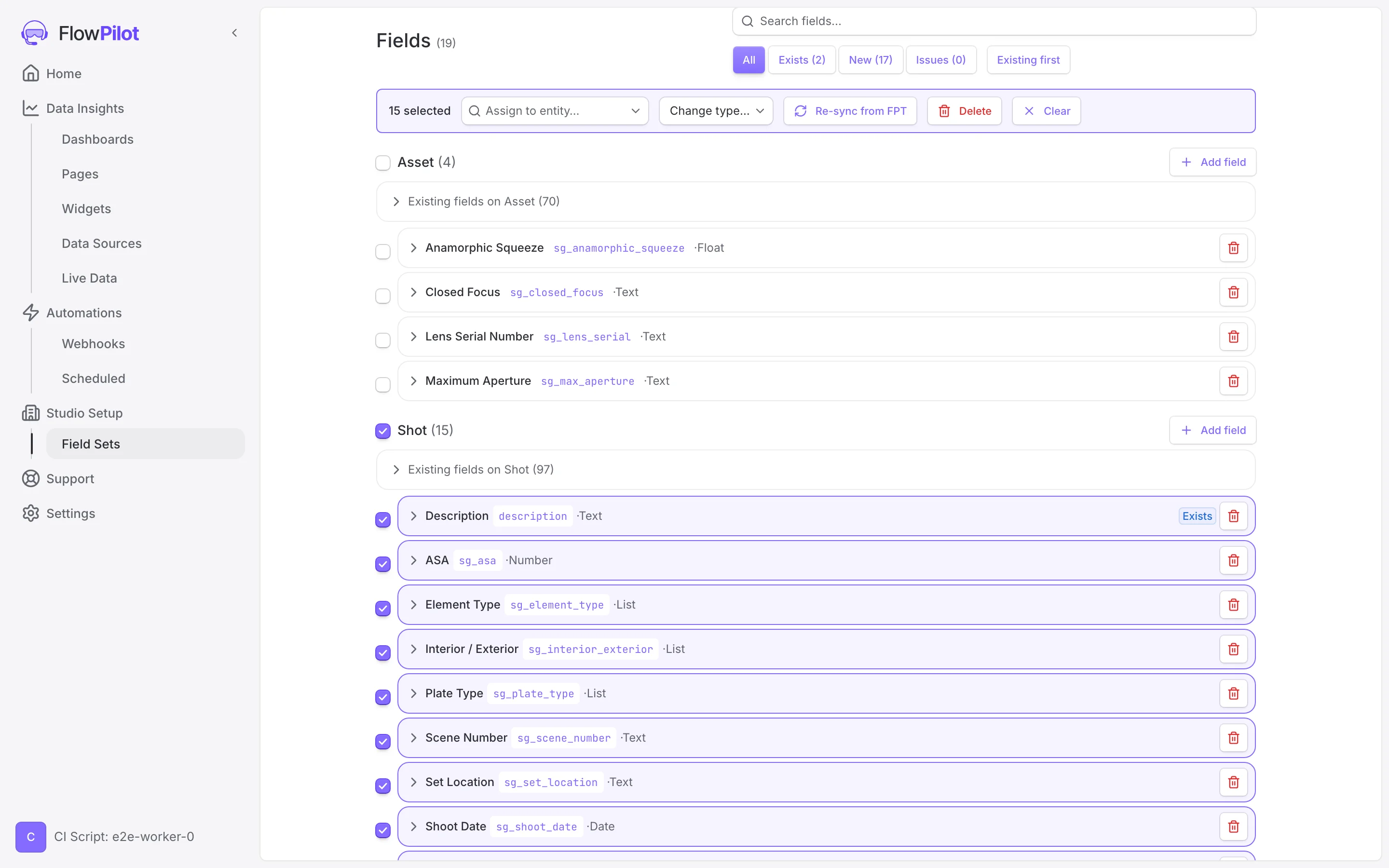
Saving reconciles the set in one go: new fields added, changed ones updated, removed ones dropped. Calculated, query and summary fields stay read-only, since Flow PT derives them for you.
Install
When the set looks right, hit Install. Studio Setup reads your live schema once more and shows you what it is about to do before it touches anything.
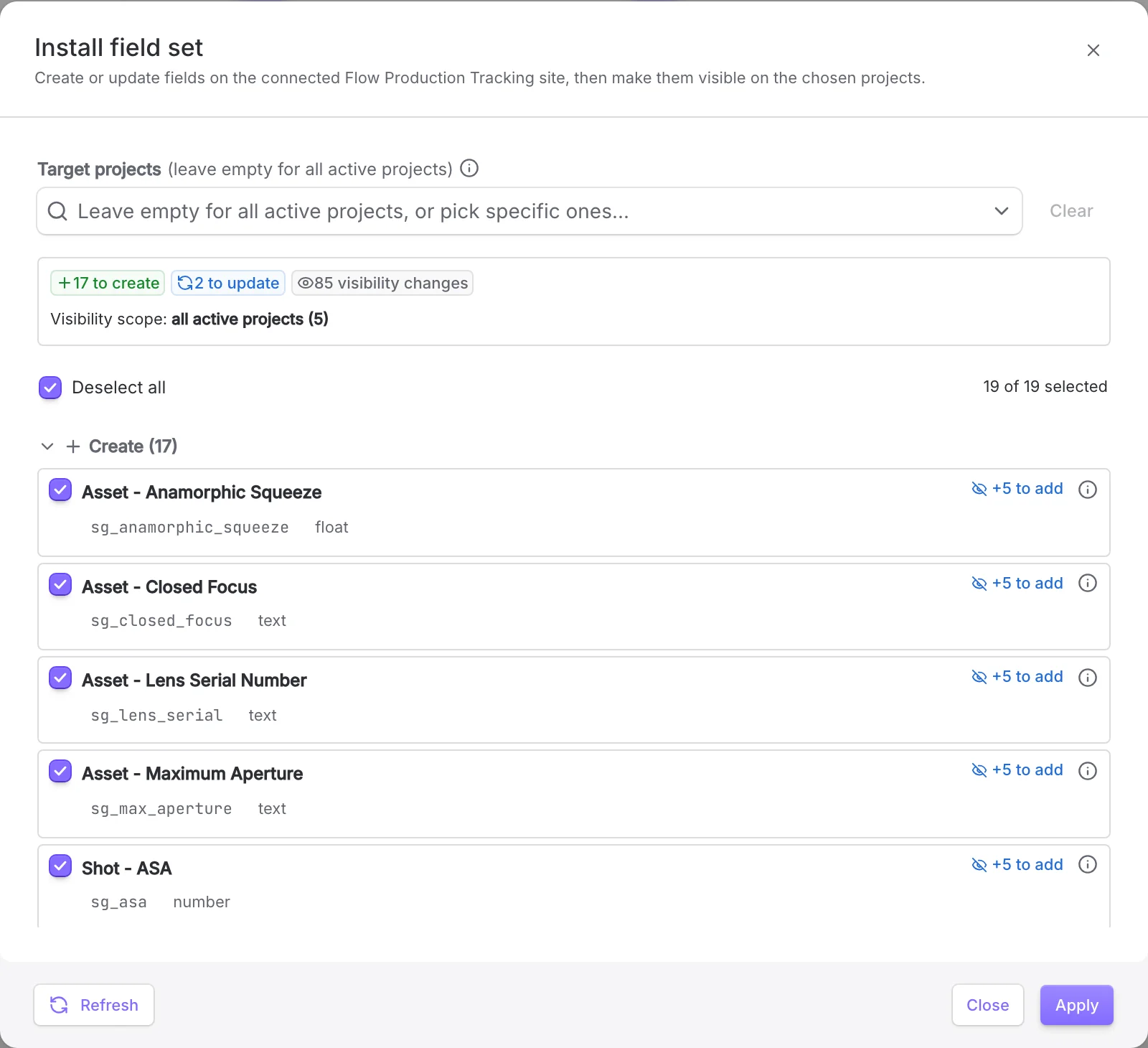
The plan is grouped: fields to create, fields to update (with a before and after diff), fields already installed, and the ones Flow PT locks down (type collisions and fields the API cannot update, each flagged with the reason). Choose the target projects, or leave it on all active projects, and it runs with live progress. If a custom entity still needs enabling, it pauses and points you at Flow PT Admin, then re-checks. Once the fields exist it sets their visibility on the projects you picked.
You can also install part of a set. Select rows in the editor and the button becomes Install Selected, which scopes the plan to your selection. Inside the plan, every field has its own checkbox, so you can apply a subset now and come back for the rest.
What it can't do yet
Flow PT's REST API does not expose everything its schema editor can do, so a few steps stay manual. They are worth knowing up front:
- Per-project status visibility is not writable over the API. Studio Setup flags it and deep-links you to the right page in Flow PT Admin.
- Enabling a custom entity is not exposed either, which is why install gates on it.
- Changing a field's type is blocked by Flow PT itself, so we surface the collision and leave the fix to you in Admin.
- The unique flag is set when a field is created and cannot change afterwards. Set it in the editor before you install.
- Default values are read-only on every type except list, status list and checkbox, so the editor only offers a default where Flow PT will take one.
These are gaps in the current API, and we have raised them with Autodesk. If they would help you too, you can add to the thread here: Missing schema manipulation API endpoints.
What's next
This release works from a spreadsheet. The next step is reading an existing Flow PT project directly, so you can lift a setup out of a project that already works and rebuild it somewhere else.
Point Studio Setup at a project that already works, pull its fields and how they are used, and save them straight into a set you can install elsewhere.
The same idea for project pages: capture the pages from a working project and rebuild them on a new show. Studio Setup will grow more of these over time.
Try it
Studio Setup is live for admins now, and free while we learn. If you set up shows in Flow PT, point it at a real, messy spreadsheet and tell me where it falls over. That is the feedback worth the most to us.
Email us at support@flowpilot.studio.